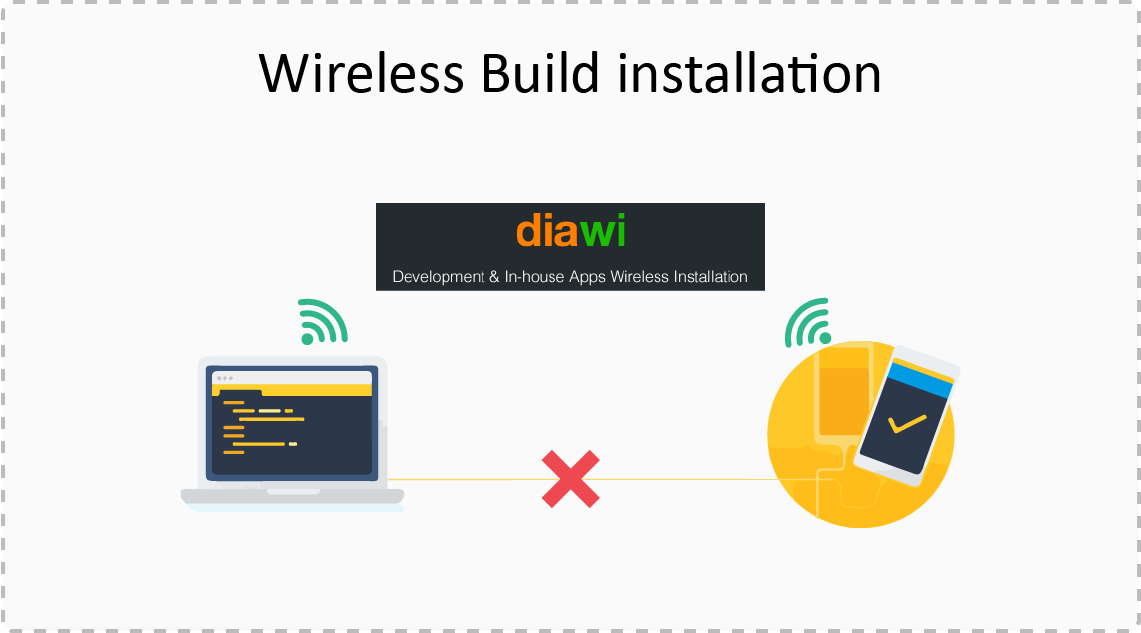
Diawi is a Wireless Build Installation tool for developers to deploy the project directly on any mobile device. It works for iOS 4+ and Android 2+ devices.
Steps to App installation using diawi:
- Upload the iOS (ipa file) or Android (apk file) on Diawi website “https://www.diawi.com”.
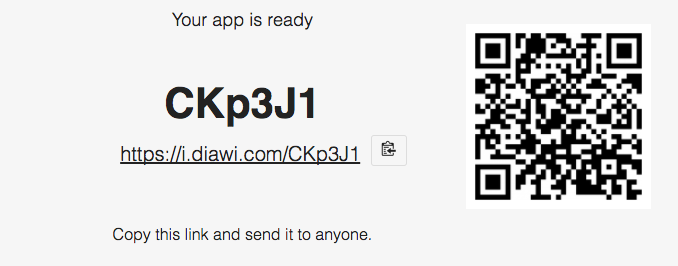
- It will then create a link for the application. We can send this link to our testers, clients, friends or even use it ourself.
- The link can be opened in the browser on the device and in order to run the app on the device click on install. (This link does not work on any simulator and is only applicable for real devices)
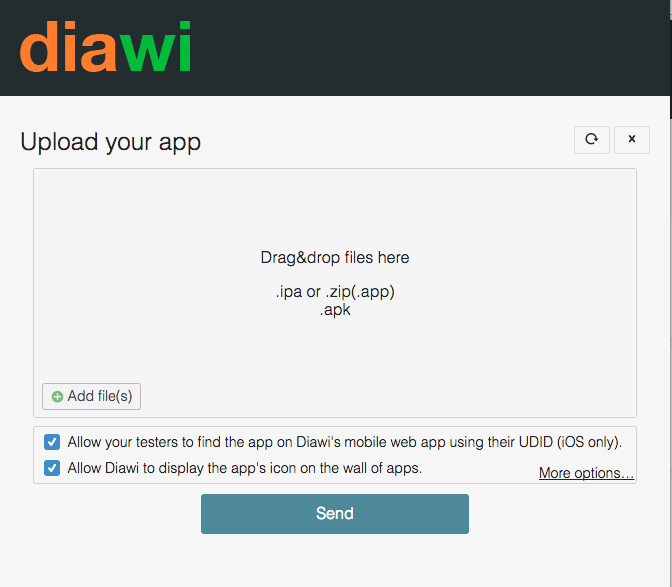
When the application file gets uploaded here, after uploading process is completed you can click on the send button to view the link. This generated link can be shared with anyone.
Features of diwai:
1. Privacy And Protection:
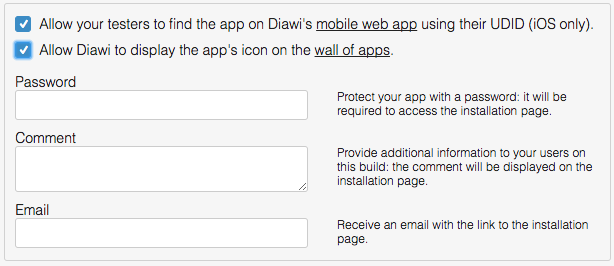
Links generated by diawi are private. You can make the link password protected. For this at the time of uploading file, click on the more option. There will be an option to set password. This password will then be required to access the installation page.
2. One tap app installation
By using link generated by diawi, on their mobile device’s browser, users will be able to download and install the app with just a single tap, nothing else.
Note: These features are free on diawi. But you may also get an account with a lot more features.
Some more features for the user having free account:
Maximum Upload size:
The upload size for free account user is 100 MB, while that of any guest user is less than or equal to 50 MB.
Uploaded app expiration:
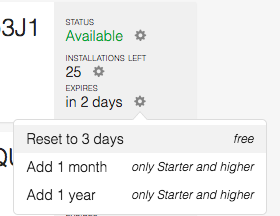
By default the link generated by diawi expires in 2 days (expires in 1 day in case of guest user). But it can be extended up to 3 days by following the below steps.
- From dashboard -> go to the Apps screen.
- Here you can see your apps for which you have generated the links.
- In the right side of each app description you will see the option of Expires.
- Click on the settings button in front of expire and increase day up to 3.
Installations per app:
The number of installations is limited depending on the plan you use. If you have free account number of installation is 25. It will decrease after each installation
Disable link:
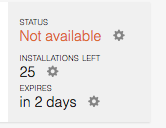
After expiration of the link the status gets changed from Available to Not Available. You can also change this status before expiration time.
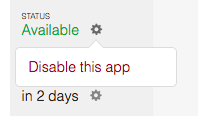
- Click on the settings button of status. There is option to disabled.
- When disabled, the app can’t be seen or installed anymore. It is however possible to re-enable it.
After disable the status is:
There are some more features for premium account user. You can see on below link.