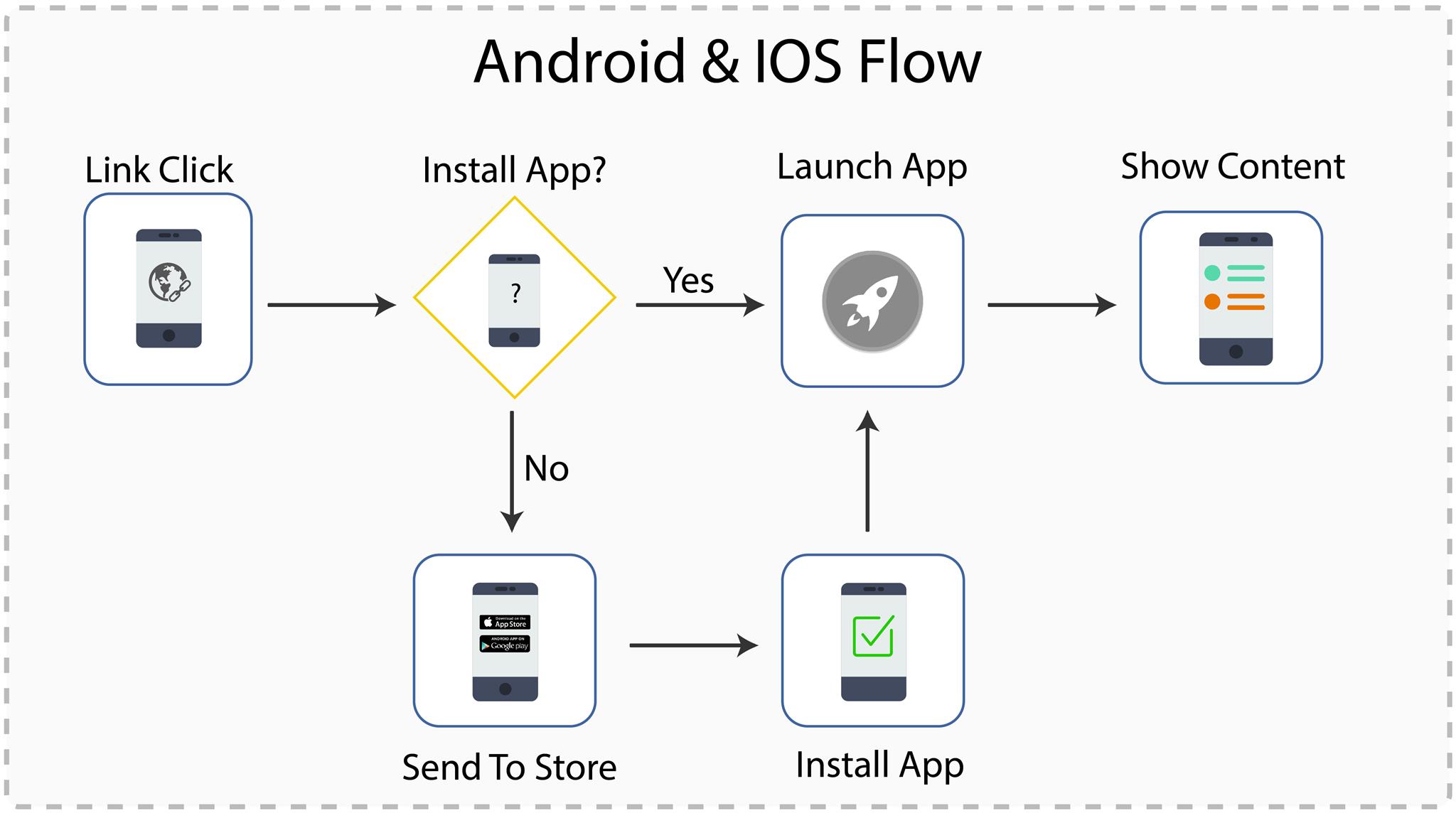
Dynamic Links are smart URLs that allow you to send existing and potential users to any location within your iOS or Android app. They survive the app install process, so even new users see the content they’re looking for when they open the app for the first time.
Key Benefits of Dynamic Links :
- Convert mobile web users to native app users
- Increase conversion for user-to-user sharing
- Drive more installs with social, email, and SMS marketing campaigns
- Turn desktop users into mobile app users
Firebase Dynamic Links are links that work the way you want, on multiple platforms, and whether or not your app is already installed.
With Dynamic Links, your users get the best available experience for the platform they open your link on. If a user opens a Dynamic Link on iOS or Android, they can be taken directly to the linked content in your native app. If a user opens the same Dynamic Link in a desktop browser, they can be taken to the equivalent content on your website.
In addition, Dynamic Links work across app installs: if a user opens a Dynamic Link on iOS or Android and doesn’t have your app installed, the user can be prompted to install it; then, after installation, your app starts and can access the link.
How it works – When a user opens one of your Dynamic Links, if your app isn’t yet installed, the user is sent to the Play Store or App Store to install your app (unless you specify otherwise), and your app opens. You can then retrieve the link that was passed to your app and handle the deep link as appropriate for your app.
- Login to console.firebase.google.com ( Here, I assume that you have configured app in Firebase Console )
- Open your project and click on Dynamic Links
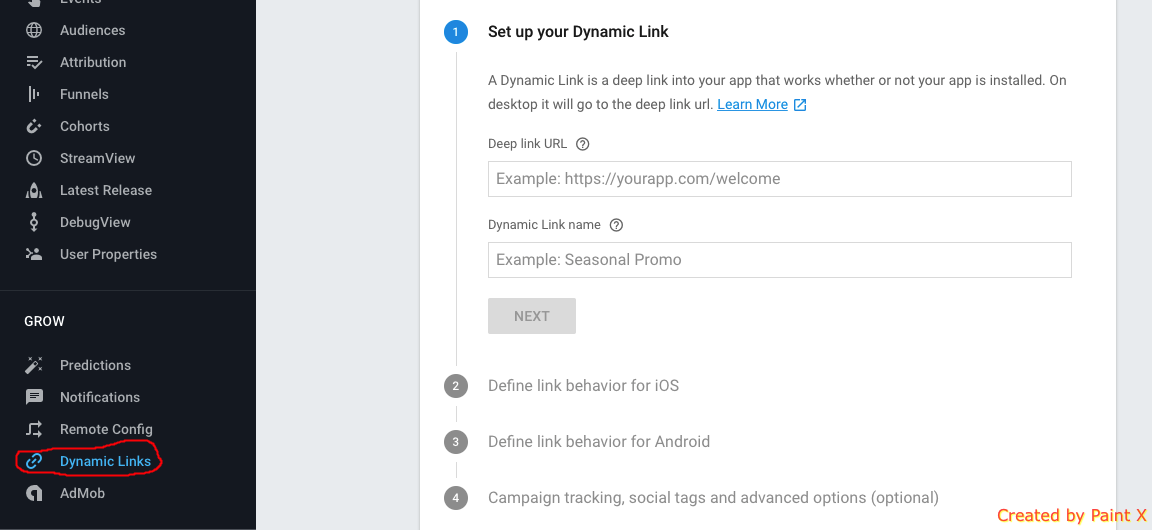
- Provide Deep link URL to open in Desktop, and Dynamic Link name. Click on NEXT.
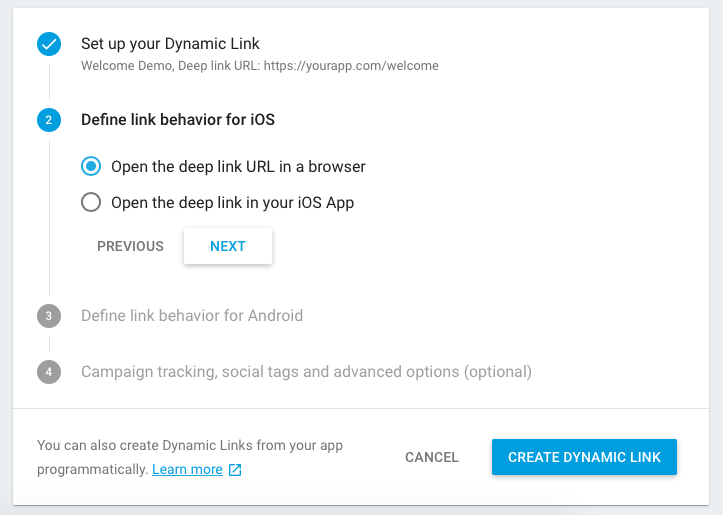
- Now click on Open the deep link in your iOS App
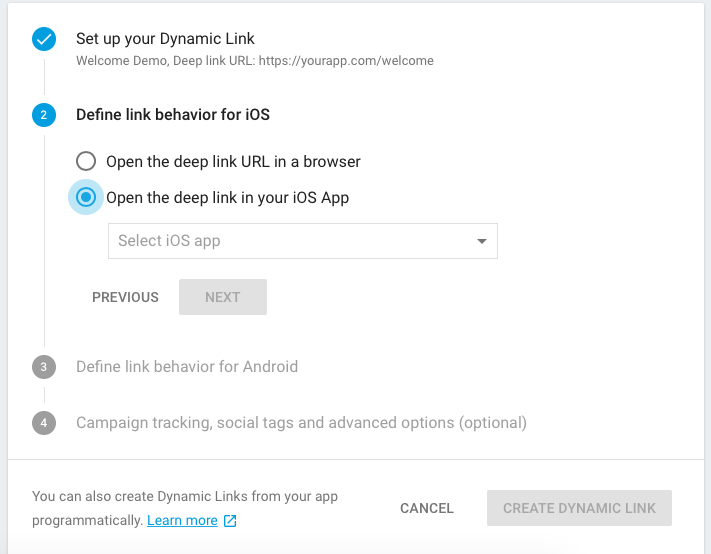
- Now Select iOS app. You need to provide App Store Id and AppId prefix for your App.
- Same steps for Android App to define link behaviour.
- Now click on CREATE DYNAMIC LINK
- Now you have all setup, you can use this link on iOS / Android Device, or even Desktop.
Happy Reading, Have Fun 😊